


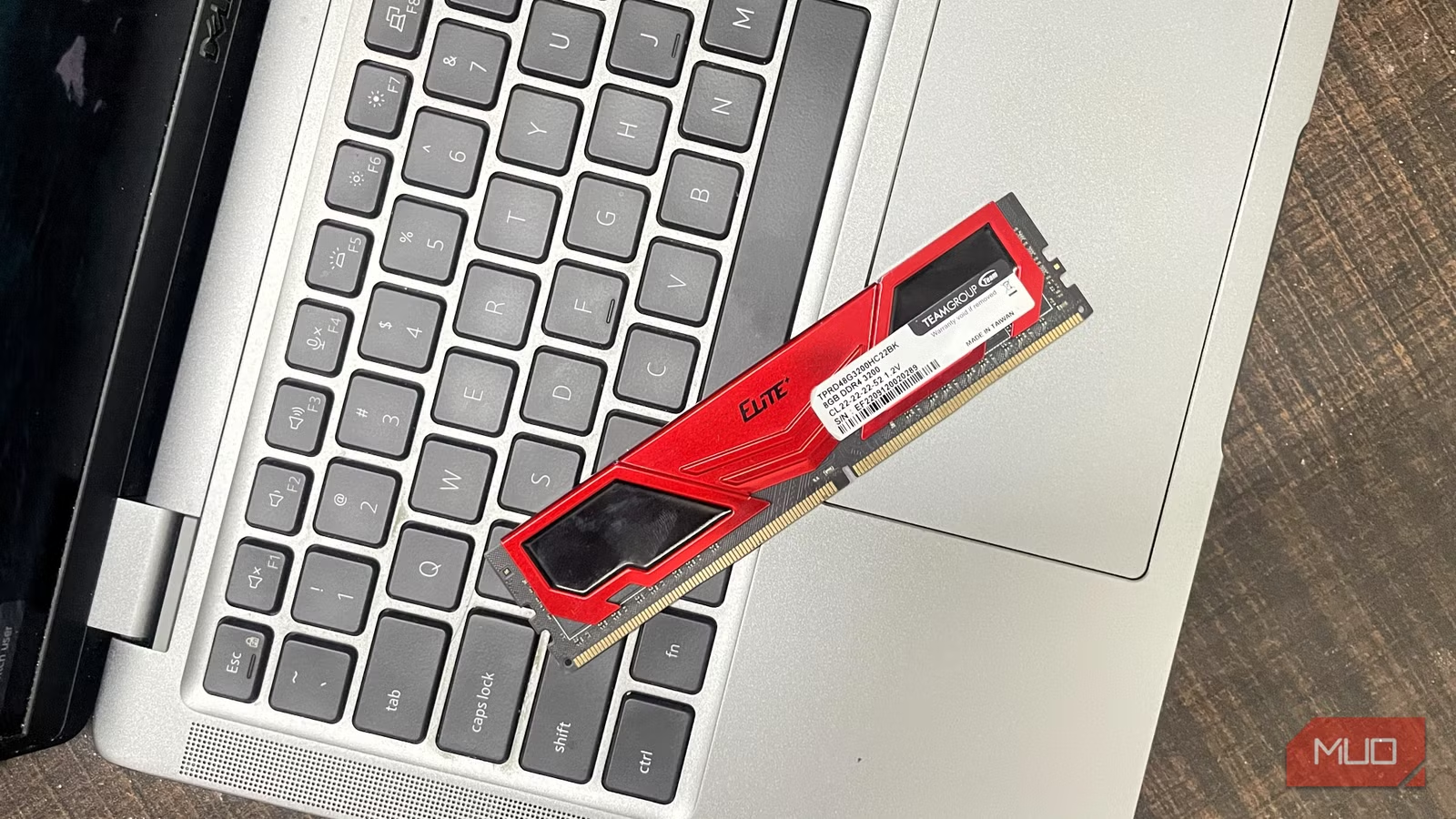
Even with decades of experience building PCs across multiple generations, it still takes me hours to properly set up a system before it’s fully tuned to utilize all of its horsepower. The BIOS menu alone has multiple switches that need to be flipped before your components perfectly sync with each other.
Specifically for RAM, I’ve seen many PC users running it at a lower speed than what it’s advertised for, and it’s not even their fault. For the sake of compatibility, your computer will set the RAM speeds to the baseline, which is more than a decade old for DDR4 systems.
Related
My computer felt slow for months until I realized my RAM was never running at full speed
A simple BIOS setting unlocked the full speed my RAM promised.
Your RAM is running slower than you paid for
Your PC defaults to a safe JEDEC profile instead of the rated one
Shaheer Khan/MUO
Every RAM stick has a JEDEC-compliant speed profile, an organization that sets standards for RAM frequency, timing, and voltages. DDR4 starts at 1600MHz and goes up to 3200MHz. That said, even if you’ve bought 3200MHz RAM, it will typically run at 2133MHz by default.
This is because inside your RAM, there’s a microchip called SPD (Serial Presence Detect) that is like a smart tag used to communicate with the system and report what the memory is actually capable of. The SPD stores a JEDEC and a manufacturer-approved profile called either XMP/EXPO. However, your system will choose the JEDEC profile because it prioritizes compatibility over everything else.
JEDEC ensures that the RAM works fine with any CPU or motherboard since there are so many components to bundle and make work together, and compatibility can become an issue.
DDR4 boots at a 2014 baseline
The 2133MHz fallback is less than half of entry-level DDR5 speeds
Despite DDR5 being the latest RAM type, DDR4 has made a huge comeback due to the AI boom inflating DRAM prices. This means people getting newer DDR4 systems will likely boot their PCs at much lower speeds than expected, which won’t be sufficient for tasks in 2026.
Specifically for DDR4, the common fallback for JEDEC is 2133MHz, less than half of what entry-level DDR5 RAM kits can achieve these days. The highest a DDR4 kit can go is 3200MHz, and even if you buy a better kit, your system will run it at entry-level speeds unless you tell it to change.
Even DDR5 boots at a speed from nearly five years ago
Kingston Fury DDR5 RAM
DDR5 kits also load at older speeds, but the difference is less substantial than with DDR4. DDR5 kits are already fast, and even the baseline JEDEC speeds were typically 4800MHz to 5200MHz when they first hit the consumer market in 2021. Again, your RAM will run at JEDEC speeds, even if it’s advertised for 6000MHz.
Check your RAM speed and enable XMP or EXPO
Task Manager shows the problem, and one BIOS toggle fixes it
Screenshot by Jayric Maning –no attributions required
To begin with, you’ll need to find out what speed your RAM is actually running at, and doing so is pretty straightforward. All you have to do is open Task Manager → Performance → Memory, and you’ll see the speeds in MT/s. Cross-check your system’s speeds with the manufacturer’s advertised speeds to see if you’re underutilizing your memory.
If the RAM is running at a lower speed than its rated speed, you’ll need to change its profiles from the BIOS menu. All it requires is one simple toggle, and to do so:
- Open BIOS at startup via F2/Delete.
- Depending on the motherboard brand, go to the relevant overclocking section, i.e., OC for MSI and Tweaker for Gigabyte.
- Find the memory overclocking section, which would either be XMP for Intel or EXPO for AMD.
- Expand the dropdown and select the first profile.
The manufacturer-advertised speeds are considered overclocked but not in the conventional manner. The profiles are rigorously checked by the makers themselves before being validated and are safe to enable, unless you stretch past them manually, in which case the memory might become unstable.
What to check after enabling the profile
The first boot after changing your RAM speeds might take a little longer, but that’s okay because your system goes through a process called memory training that optimizes the signals, timings, and voltages between your CPU and the RAM itself. For DDR5 systems, if you’ve enabled Memory Context Restore before changing the speeds, disable it; otherwise, your system will be running on the older settings and become unstable.
Other than that, ensure your motherboard is on the latest BIOS version as well, since earlier firmware might have issues with higher-frequency memory, especially with DDR5. On motherboards with 4 DIMM slots, place two sticks in the order that your motherboard recommends for dual-channel. On a four-stick setup, if the RAM becomes unstable at XMP/EXPO speeds, lower the speeds first and then the voltage if even that doesn’t work.
Related
Your NVMe SSD might be running at half speed because of this BIOS setting
Can’t let your SSD slack in this economy.