


Whenever my PC acted weirdly, I used to hit the Ctrl + Shift + Esc key combo. That’s the ritual of every Windows user. Task Manager feels familiar and gives me a quick view of what’s consuming my resources. After all, we all have been using it for years. The problem is that Task Manager often tells me what’s happening without telling me why. It works fine when I want to close a frozen app or find out what’s eating up my RAM. However, when I need more information like why I can’t close an application, Task Manager hits a wall.
Related
I stopped using Task Manager once I found what Windows hides from it
I stopped relying on Task Manager after discovering the hidden Windows activity it ignores.
System Informer shows me what’s really happening on my PC
I can finally see what’s behind a misbehaving process
Afam Onyimadu / MUO
After trying several tools, I came across System Informer. It’s open-source, free, and gives me a full picture of what’s happening on my PC. I feel System Informer is a power version of Task Manager. You may know it by its earlier name, Process Hacker.
With Task Manager, I can spot which processes are using the most resources. Let’s say Chrome is eating up memory or a gaming app is stressing my CPU, I can spot it almost immediately. Now, the problem starts when the process isn’t so obvious. I had to constantly Google process names to understand which services or apps they belong to.
When I tried System Informer, I got more information about those processes. This includes process IDs, CPU usage, threads, memory details, handles, and other technical information. I find this particularly useful when an application is behaving strangely. Instead of simply seeing that a process is using an unusual amount of CPU, I can open its properties and investigate it further.
System Informer shows the real parent-child hierarchy
It helps me understand relationships between processes
Frankly speaking, I did not like System Informer when I opened it for the first time. I have used Task Manager for over a decade. So, I was used to that neat and clean interface. System Informer doesn’t look that polished. There are columns and tabs everywhere. This might feel overwhelming for first-time users.
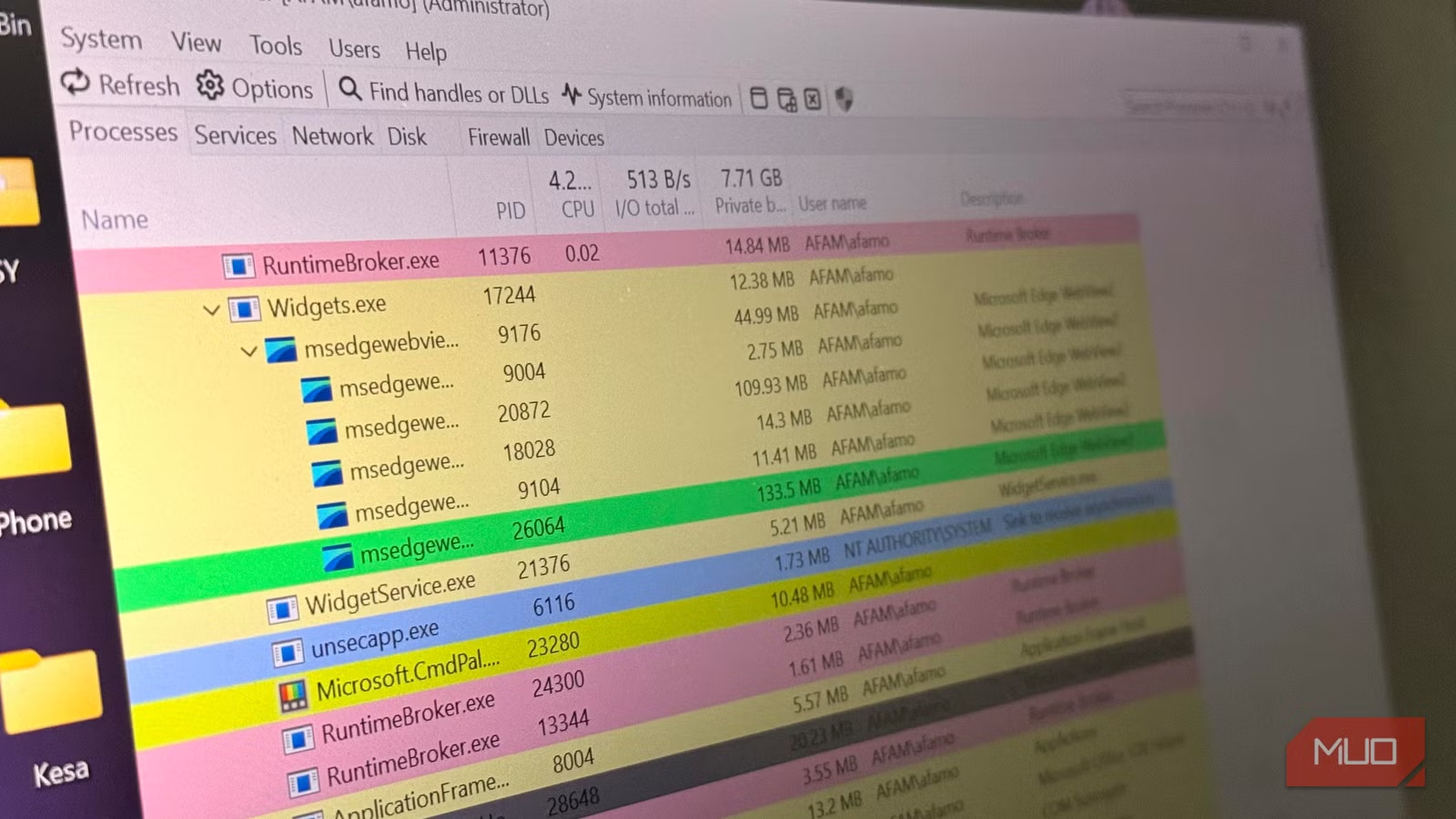
That said, the first four tabs — Processes, Services, Network, and Disk — give you a lot of important information. I also like System Informer for its color-coded tabs. This makes it easier for me to scan a long list of processes.
- Blue: Core system processes and kernel-level tasks
- Cyan: Background services
- Pink: Immersive/UWP (Universal Windows Platform) apps
- Yellow: .NET/managed processes
- Red: Terminated processes
System Informer also differentiates itself from Task Manager with its parent-child layout. This helps me understand which launcher or service host spawned a mysterious process. Some applications don’t just launch one process. They create several child processes or background components, which makes the Task Manager’s list confusing.
When I’m checking the Process tab, this parent-child layout gives me a highly detailed overview of every process running on my machine. I can see parent and child relationships, CPU/GPU usage, memory, I/O activity, all updated in real time. This makes troubleshooting easier.
Finally, an answer to “file in use”
Fixes one of my biggest annoyances
Afam Onyimadu / MUO
There are several instances when I’m trying to delete or move a file and Windows shows me an alert saying “The action can’t be completed because the file is open in another program.” Windows doesn’t explicitly mention which program, which is frustrating. We’ve all been there, right? In such cases, I would do some guesswork, get more annoyed, and then restart my PC.
System Informer offers a built-in search tool called Handle Search. I just have to hit Ctrl + F, type part of the file or folder name, and it will pinpoint exactly which program or background process is locking that particular file. I can double-click the offending process and jump straight to that program in the main process tree. From there, I can right-click the handle and select Close to break the lock instantly. So you see, System Informer allows me to delete or modify a file without needing to reboot my computer.
I can trace mysterious background and network activity
It makes background activity much easier to investigate
Afam Onyimadu / MUO
Task Manager shows me how much network bandwidth a process is using. Sometimes, I want to know more than that. If my PC suddenly starts using a lot of bandwidth, I would want to identify which process is responsible instead of just staring at a graph and guess.
The Network tab in System Informer shows which processes are making connections. I can also see important details like their addresses and connection status. So, if something is suddenly using my internet, I can quickly see which app is responsible rather than just guessing.
The Disk tab is just as useful. If my PC feels unusually slow after startup, I can see which process is reading or writing data and even which files it’s accessing. In my case, that could quickly point to something like Windows Search indexing, OneDrive syncing, or an antivirus scan running in the background.
Powerful termination options
It goes beyond just the “End task” option
Screenshot by Jack Slater – no attribution required
Task Manager’s End Task option is a savior when an app freezes or stops responding. System Informer also offers this option, but it doesn’t stop just there. When you right-click an item in the Process tab, you get some advanced termination options:
- Terminate: Ends the process in the standard way. It’s useful in closing frozen apps.
- Terminate tree: Kills the selected process and any sub-processes it launched. It’s helpful when a software (like Google Chrome or Steam) launches dozens of helper processes, or a game launcher keeps restarting a background process.
- Suspend: Freezes the app without killing it. This prevents an app from using CPU while leaving its state intact.
System Informer also allows me to adjust CPU priority and other process settings. That being said, I wouldn’t change these unless I know what I’m doing. Of course, having more control over Windows is useful, but it can also break something if I start killing random system processes.
I use Task Manager for the basics, but System Informer when things go wrong
Despite everything, I haven’t ditched Task Manager entirely. It’s still my go-to tool when I want to check what’s slowing down my PC or manage my startup apps. I feel Task Manager is faster and easier in such situations. I treat System Informer as a diagnostic instrument, rather than a quick system dashboard. When Windows starts doing something I can’t figure out, System Informer gives me all the answers.