


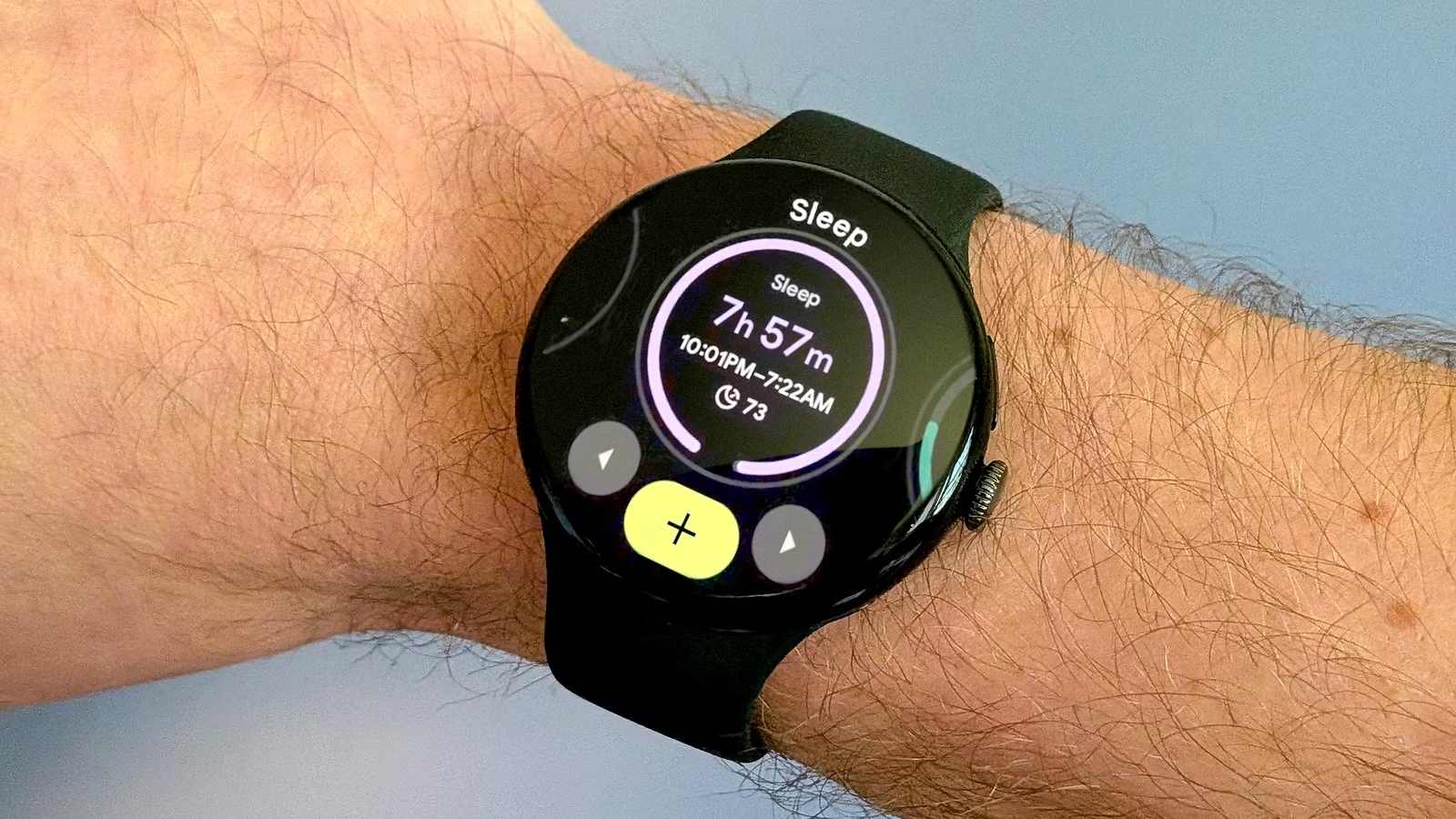
Google’s apps show recent sleep information pretty well, but long-term history is harder to reach. Exporting a year of Pixel Watch data and storing it on a NAS fixes that. Here’s what it achieves, how to do it, and whether you need the hardware.
What is this achieving, exactly?
Turning a rolling window into a permanent archive
Google’s health apps are built to show how you slept recently, not how you have slept over the long run. Your smartwatch records a detailed session every night, but the history the app surfaces is limited, and anything older is awkward to browse, compare, or chart. That doesn’t mean the data isn’t useful, but as I see it, it’s definitely underutilized in anything user-facing.
Instead of depending on whatever Google chooses to display, you can hold your own copy of every night: start and end times, total duration, and the time spent awake and in light, deep, and REM sleep. The files sit on hardware you control, in a format that any spreadsheet, script, or database can read without an app or an account.
This also has a practical side. Google has reshuffled its health platform more than once. The Fitbit app became the Google Health app in May 2026, and the transition removed several features, including snore and noise detection and Sleep Profile. Google said it would begin deleting data tied to those features on July 15, 2026. Anyone who hadn’t exported before then lost that history for good.
A local archive protects you from this kind of change, because a product decision on Google’s side can’t reach files you already hold.
The archive also makes analysis possible. With a full year in one place, you can compare seasons, check how a schedule change or a stretch of travel affected deep sleep, or see whether weekends really differ from weekdays. A few weeks of data can’t answer those questions.
We do, however, need to clarify what this doesn’t do. Exporting doesn’t make the watch’s sleep staging any more accurate, and it doesn’t add data the watch never recorded. It only preserves what exists and puts it under your control.
How did I do it?
Google Takeout, scheduled exports, and a little scripting
The route starts at takeout.google.com. Sign in, click the option to deselect everything, then tick only Fitbit. Pixel Watch data flows through the same export, and the Fitbit name has stuck around even after the app’s rebrand. You can export once, or schedule a recurring export that runs every two months for a year, which suits anyone who wants the archive to keep growing. Google delivers the result as a download link by email or drops it into a cloud storage service. Very long histories can take longer to prepare, and accounts with Advanced Protection can see requests held for days or weeks.
Once the archive arrives, extract it and look inside the Fitbit folder. Sleep data lives in individual JSON files named by date, each recording the session’s start and end time and the seconds spent in each stage. Google splits anything over the chosen size limit, 2 GB by default, into several ZIPs, so don’t be surprised if the download comes in parts.
Getting it onto the NAS is easy. Copy the extracted folder over SMB or NFS, or let a cloud sync client on the NAS pull it down. Keep the original ZIP files and the extracted folders, since the raw archive is your safest record.
The JSON files are readable but not convenient, so a short Python script that walks the folder and writes one tidy CSV with a row per night makes the data far easier to use. There is also an open-source command-line tool, Google Health CLI, that pulls Pixel Watch data straight from Google’s API and avoids waiting on Takeout. It’s a community project, so check its documentation before trusting it with your account.
Do I need a NAS for it?
Any reliable storage works, as long as it’s backed up
No. A year of nightly sleep records is small. A casual user with a year or two of data and no continuous heart rate tracking can end up with an export under 50MB, and even a heavy user’s full archive usually only reaches gigabytes because of minute-by-minute heart rate files. A sleep-only archive fits on almost anything, including a spare laptop folder, an external drive, or a cloud storage account you already pay for.
What matters is that the data lives somewhere other than Google, ideally in more than one place. A single copy on one drive isn’t a backup, because drives fail, get lost, or get overwritten. The old 3-2-1 rule still applies: three copies, on two different kinds of media, with one stored off-site.
A NAS earns its place in a few specific situations. It’s always on, so scheduled exports and scripts can run unattended. It can mirror disks for redundancy, share the data with every device on your network, and run snapshots that protect you from accidental deletion. It also keeps your health data off third-party servers, which matters to some people for privacy reasons. If you already own one, using it here costs almost nothing and fits naturally into a backup routine.
If you don’t own one, buying a NAS just for sleep files would be overkill. Start with an external drive plus an encrypted cloud copy, and revisit the idea if your self-hosting ambitions grow. Redundant disks inside a NAS protect against hardware failure, but they still aren’t a substitute for a separate backup.
Own your sleep data before Google changes the rules
Google’s apps only show a slice of your sleep history, and platform changes can erase the rest. A Takeout export, stored and backed up sensibly, gives you a permanent, portable archive. A NAS makes that archive easier to maintain, but it isn’t required.