


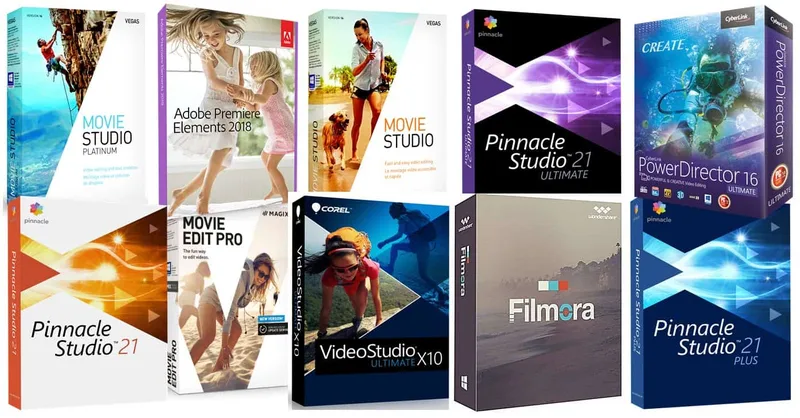
source: diyvideoeditor
Choosing the wrong editor doesn’t just slow you down — it actively shapes what kind of creator you can become. A tool with too steep a learning curve kills momentum early; one with too low a ceiling blocks you from growing past it.
The picks below are drawn from diyvideoeditor.com’s 2026 comparison and Think Media’s widely watched breakdown, then organized by skill level so the choice is straightforward rather than overwhelming.
How These Picks Were Made
The ranking weights three factors: the realistic skill floor required to get useful output, the ceiling of what the software can actually produce, and platform fit for YouTube specifically (export quality, rendering speed, and format support).
Price and platform availability are noted where they affect the decision. Software that scores well on features but demands weeks of study before producing a watchable video is placed at the appropriate level, not inflated.
For Absolute Beginners
CapCut: Best Free Starting Point Overall
CapCut runs on desktop and mobile, costs nothing at the base level, and has become the go-to recommendation for new YouTube creators who want to publish something real within the first hour of use.
Think Media’s 3.51-million-subscriber channel flagged it as the best free option overall in their December 2025 breakdown, which carries weight given how closely that channel tracks what actually works for new creators.
The interface is drag-and-drop without being stripped-down. Auto-captions, trending audio, and template-based intros cover the features most beginners actually need for YouTube. A Pro tier adds more assets and export options if you outgrow the free version.
One honest limitation: CapCut’s branding and template ecosystem is visually tied to short-form content. It works for YouTube, but creators making longer documentary-style or tutorial videos often find themselves bumping into its structure before the six-month mark.
iMovie: Best Free Option for Mac Users
For Mac users who want zero setup friction, iMovie is the obvious starting point. It’s free with macOS, exports directly to common YouTube-ready formats, and uses a magnetic timeline that prevents the classic beginner mistake of accidentally leaving gaps between clips.
Think Media covered this at the 1:43 mark of their video, noting the magnetic timeline as a genuine UX advantage for new editors, not just a marketing term.
The ceiling is real and arrives quickly. iMovie handles basic cuts, color presets, and titles well, but has no motion graphics workspace, no multi-cam support, and limited audio mixing. It’s a launchpad, not a long-term home.
Wondershare Filmora: Best Beginner-to-Intermediate Bridge
Filmora sits in a particular sweet spot that neither CapCut nor iMovie occupies: it started as a beginner tool and has evolved into semi-pro territory with AI-driven features, according to diyvideoeditor.com’s 2026 review.
That evolution means a creator can grow inside the software rather than having to migrate.
The AI tools handle noise removal, scene detection, and auto-beat syncing — tasks that trip up beginners but matter a lot for watchable YouTube content. The interface stays approachable throughout.
Reviewers consistently note that the jump from “first video” to “something that looks intentional” is shorter with Filmora than with most tools at this price point.
It’s worth knowing that Filmora carries a visible watermark on free exports, so a subscription is required for clean output. That’s a real consideration for creators who want to publish before committing to a paid plan.
For Intermediate Creators
CyberLink PowerDirector 365: Best All-Round Consumer Pick
PowerDirector has held the top consumer-level ranking on diyvideoeditor.com for a number of years, and the 2026 version justifies that position on two specific grounds: rendering speed and format breadth.
The site’s review, conducted on an ordinary Windows 11 machine, not a dedicated editing rig, found it the fastest in rendering time and timeline scrubbing even with highly compressed high-definition formats.
For YouTube creators who batch-produce content, that speed difference compounds across a publishing schedule.
The 365 subscription model means the software updates continuously rather than requiring a version upgrade purchase.
The 2026 build also handles 360-degree footage end-to-end, which matters for creators moving into immersive or travel content, and includes a dedicated Adorage workspace for stabilization and camera shake removal.
Those aren’t features most intermediate editors use daily, but having them inside one package removes the need for a separate stabilization tool.
Windows-only is the meaningful constraint here. Mac creators will need to look elsewhere.
Adobe Premiere Elements 2026: Best for Structured Learning
Premiere Elements launched in 2004 and has been refined for the home and consumer-level editor ever since.
The 2026 version offers three distinct interface levels based on the user’s experience, which makes it genuinely unusual among paid tools: you can start in guided mode, where the software walks you through edits step by step, and graduate to expert mode as the workflow becomes familiar.
For YouTube creators who want to understand why an edit works rather than just clicking through templates, that scaffolded structure has real value. The learning transfers well if you ever move up to Adobe Premiere Pro.
The trade-off is that Elements doesn’t match PowerDirector on raw speed, and the feature ceiling sits lower than Pinnacle or the prosumer options below.
It’s the right pick for a creator who wants structured progression; it’s the wrong pick for someone who needs maximum output at minimum learning time. best time to post on YouTube, understanding when to publish matters as much as how quickly you can render, and the same audience-timing logic applies across platforms.
Movavi Video Editor: Best for Clean, No-Fuss Intermediate Work
Movavi competes closely with Filmora at the intermediate level and wins on one specific dimension: format support.
It handles a wide range of input and output formats without the user needing to install additional codecs, which removes a friction point that trips up creators working with footage from multiple cameras or screen recorders.
Color correction and stabilization tools are built in, and the transitions and effects library covers standard YouTube editing needs without overwhelming the interface.
Reviewers describe it as fully featured and easy to use without calling it basic, a distinction that matters for creators who find Filmora limiting but aren’t ready to absorb Premiere Pro’s learning curve.
For Advanced and Prosumer Creators
Pinnacle Studio 26: Highest Feature Ceiling Among Consumer Tools
Pinnacle Studio 26 is probably the most feature-rich consumer-to-prosumer editor available, according to diyvideoeditor.com’s 2026 comparison, and that’s both the argument for it and the argument against it.
Corel acquired Pinnacle back in 2012 and has continued building out its feature set to the point where it genuinely competes with professional software on capability. Multi-camera editing, keyframe control, and advanced color grading are all present.
The complexity is real. Pinnacle sits third in diyvideoeditor.com’s overall ranking specifically because the learning investment required to use it well is substantial. Creators who need advanced features now and have the time to learn will find the ceiling rewarding.
Creators who need to publish quickly will find it punishing.
DaVinci Resolve: Best for Creators Ready to Go Pro
DaVinci Resolve is the editor that professional colorists and film editors use, available in a free version that is more capable than most paid consumer tools.
Think Media’s December 2025 video covers it in depth at the 14:08 timestamp, including a specific discussion of the node-based editing system at 15:56, a workflow that is genuinely different from the layer-based approach every other tool on this list uses.
The node-based color grading in Resolve is where its reputation comes from, and for YouTube creators whose content depends on visual consistency across a series, it’s the strongest tool available at any price.
The free version handles 4K export and most professional workflows; the Studio version, which carries a one-time license fee, adds noise reduction, certain collaborative features, and the neural engine tools.
The time investment is the honest caveat. Reviewers broadly agree that Resolve’s learning curve is steeper than Premiere Pro’s, and the node-based system requires a genuine mindset shift for anyone coming from layer-based software.
Adobe Premiere Pro and Final Cut Pro 11
For completeness: Adobe Premiere Pro remains the industry standard for professional YouTube creators and video agencies working cross-platform, covered at the 9:45 timestamp in Think Media’s breakdown.
Final Cut Pro 11 is Mac-only and uses the same magnetic timeline as iMovie but with a professional-grade feature set; Think Media covers it at the 5:06 mark and notes the pricing structure, a one-time purchase rather than a subscription, at the 6:38 timestamp.
Both tools are benchmarks in their respective ecosystems. Premiere Pro’s subscription model and Final Cut Pro’s Mac exclusivity are the two factors most likely to determine which is the right fit before any feature comparison begins.
Magix Video Pro X: Best Value Prosumer Option
For creators who want professional-grade control without the Adobe subscription or the DaVinci Resolve learning investment, Magix Video Pro X is the value pick at the prosumer level. diyvideoeditor.com calls it the best value prosumer option in their 2026 comparison.
It sits above the consumer-level tools on feature depth while remaining more approachable than Resolve’s node-based system.
FAQs About Video Editing Software for YouTube
What Is the Best Free Video Editing Software for YouTube?
CapCut is the strongest free option for most creators, particularly those working across desktop and mobile. iMovie is the better choice for Mac users who want a native, no-install option.
Do I Need to Pay for Video Editing Software to Grow on YouTube?
Not initially. CapCut and DaVinci Resolve’s free tier are both capable enough to produce competitive YouTube content. The case for paid software is usually time, faster rendering, better templates, and fewer workarounds in the workflow.
Is DaVinci Resolve Really Free?
The free version of DaVinci Resolve is genuinely free and handles most professional workflows including 4K export. The Studio version carries a one-time fee and adds features like noise reduction and the full neural engine toolset.
Which Video Editor Do Most YouTubers Use?
Adobe Premiere Pro is widely used among professional and full-time YouTubers, particularly those working on Windows. Final Cut Pro dominates among Mac-based creators. CapCut and Filmora are most common among newer and mid-tier creators.
Can I Switch Editors Later Without Losing My Work?
Project files from one editor generally don’t open in another. Most creators export finished videos and start fresh in the new software rather than attempting to migrate project files.
The switch is a clean break, so timing it to a natural content milestone (a new series, a channel rebrand) makes it less disruptive.
Is Pinnacle Studio Worth It for YouTube Creators?
Pinnacle Studio 26 is worth it for creators who have hit the ceiling of tools like Filmora or Movavi and want more granular control over color, audio, and motion graphics. It’s not the right pick for creators who prioritize quick turnaround over feature depth.
What Is the Difference Between Subscription and One-Time Purchase Video Editors?
Subscription tools like Adobe Premiere Pro and CyberLink PowerDirector 365 update continuously and spread the cost over time. One-time purchases like Final Cut Pro 11 and Magix Video Pro X require paying upfront but carry no ongoing fee.
Think Media addresses this comparison directly at the 6:38 timestamp in their 2026 breakdown.
Start Where You Are, Not Where You Want to Be
The most common mistake new YouTube creators make is downloading DaVinci Resolve on day one because it’s what the pros use, then publishing nothing for three months because the learning curve stalled them.
Pick the tool that lets you publish this week, not the one that looks most impressive on a software list.
If you’re starting out, CapCut or Filmora. If you’re hitting the ceiling of those tools, PowerDirector or Premiere Elements.
If you’re ready to commit to a professional workflow, DaVinci Resolve with the free version first, then the Studio tier once you’ve confirmed the node-based system clicks for you.
The software upgrade is a reward for outgrowing what you have, not a prerequisite for starting.