


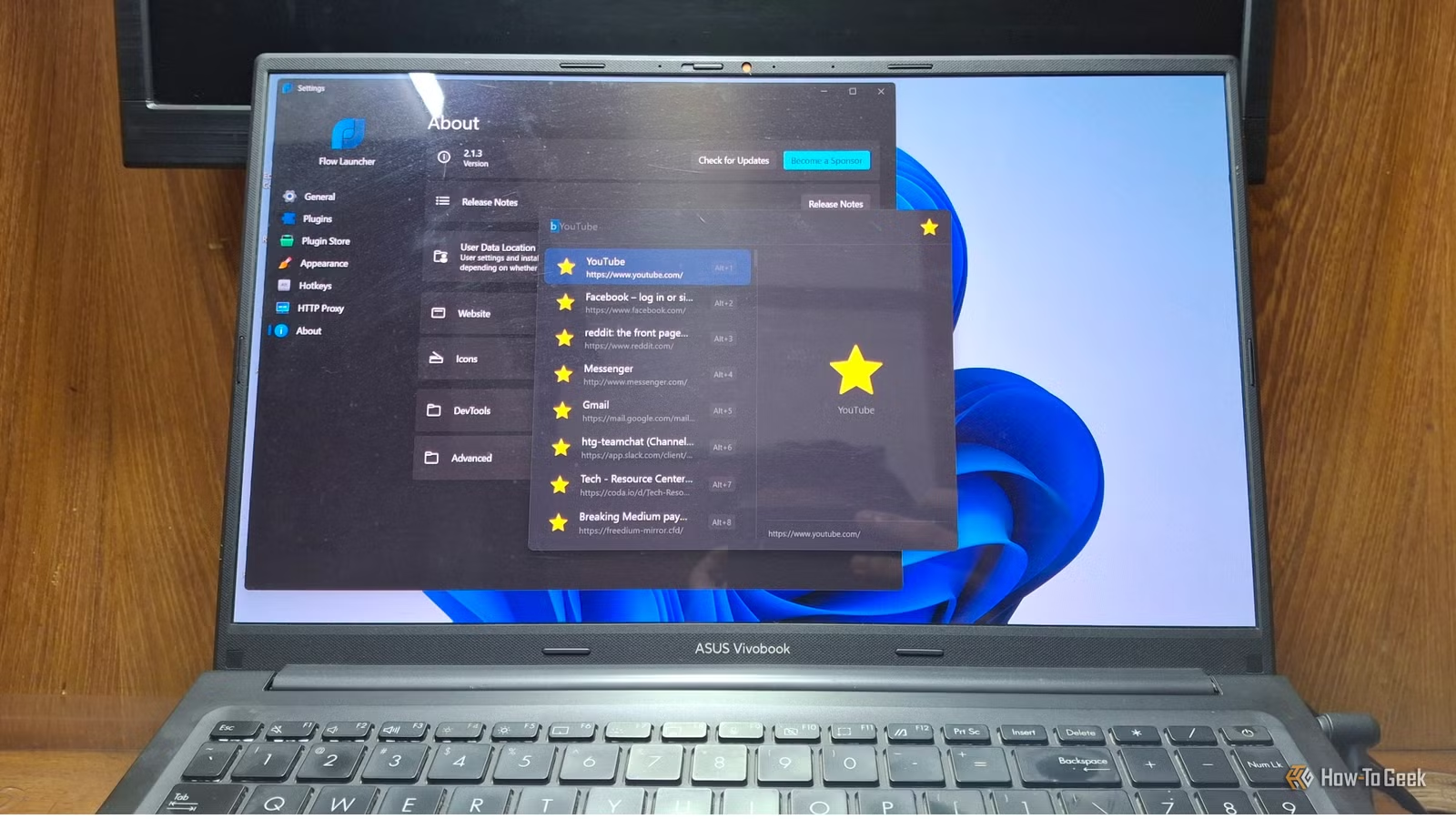
After years of complaints about how little you could customize the Windows Start menu, Microsoft is finally overhauling it in the 26H2 update. In reality, though, they are only catching up to something an open-source app figured out years ago. Meet Flow Launcher, a keyboard-first app launcher that is superior to the current Start menu from all directions.
Trying Flow Launcher for the first time
The productivity boost felt like cheating
To test this praised tool out myself, I went straight to the official Flow Launcher website to grab a copy. There were multiple download options, including a portable version, an EXE file, and also through package managers such as WinGet. I went for the portable version for a quick setup. Though that meant I had to create a shortcut myself.
The setup process was intuitive, as the onboarding pages took you through some of the essential things you should know about the launcher, including shortcut keys, hotkeys, and explaining action keywords.
On first launch, I’m welcomed by a search bar, followed by a list of commands. The UI looked nice and blended well with Windows 11. I also noticed a clicky sound every time I opened it with Alt+Space. The most common functionality for the launcher is searching, especially searching for and launching apps.
I like to pin apps I use often to my Taskbar and the Start menu. However, that means I have to use the mouse to click the app to open it. With Flow Launcher, I only had to start typing its name and hit Enter. But that’s not all. Searching for an app is blazing fast. By the time you finish typing the name halfway, the result is already there.
It’s not just apps, though. You can also search for files and open them in the default file opener. This is much more useful as I don’t have to remember where I kept that one pesky file or use Windows File Explorer’s slow search. As long as I remember the name, that’s enough. If Windows search drives you crazy, this could be a lifesaver.
Related
Microsoft’s New PowerToys Search Is the Missing Feature Windows 11 Needs
As easy as typing it out.
Flow Launcher itself is highly customizable
You’ll get lost playing around its settings
Talking about customizing the customizer. You can tweak General and Appearance settings. Let’s explore both.
The General settings tab contains the settings that shape the behavior and functionality of the launcher. For example, whether or not you want to start Flow Launcher on system startup, hide its tray icon, whether it should be on top of other windows, and more.
One setting I liked a lot is Always Preview. It opens a new panel on the side that shows the icon of the searched app and some details. Not only does it enhance the overall look of the app, but it’s also helpful when you need some quick details about the app or file.
The Appearance tab is all about the look and feel. There are almost 20 themes to choose from. Mine was set to Windows 11 by default, which explains why it looked like a native app. I went with the Rider theme, which looked more polished to me.
Other things you can customize are animation, sound effects, icons, badges, window size, and the color scheme, among others. If you turned on Always Preview, some of the results may not take effect since the preview panel takes up some space in the full launcher window.
You can also adjust the clock and date here. I found that turning on both squishes them together, with no space in between. So I turned off the date.
The plugin ecosystem is where it really pulls ahead
Turning a launcher into a control center
In the settings, you’ll find a Plugins and a Plugin Store section. The Plugins section contains plugins you’ve already installed in Flow Launcher. The store has more you can try. And this is really where things turn more interesting as you keep extending what the launcher can do.
In the Plugins section, you can turn a plugin on or off. Each plugin also has a dropdown menu that contains some settings regarding it. For example, the Browser Bookmarks plugin lets you choose the browser(s) you want to load from. Each plugin lets you set an action keyword for it.
The Plugin Store was quite amusing to explore. There is an ocean of plugins to be installed in a wide range of categories, from productivity and study to gaming and development. You can search, update, and install plugins. You can also choose a plugin from your local path.
Installing a plugin is also straightforward. You click on the plugin and click Install. Once installed, you’ll need to restart Flow Launcher to use it.
Some of the plugins I found useful are Speed Test, File Folder Opener, Google Translate, and some of the math plugins. One thing I wish is that each plugin had a dedicated page where I could check the details of the plugins. You can see them by clicking a link that opens the GitHub page of the plugin. However, having a page inside the Plugin Store would be much more intuitive.
Related
These 3 apps make Windows feel like a completely different OS (and they’re free)
These three free apps fix Windows’ biggest annoyances—from slow search to clunky window management—and completely change how it feels to use.
Microsoft still has some catching up to do
While PowerToys Run and Command Palette have quite similar functions and capabilities, the Start menu still feels left behind. Moreover, Flow Launcher has an upper hand over the PowerToys tools if you love customization and you want to become a power user.